
Open a picture, make it look better and download it in a few clicks. Nothing to install, and your photo stays on your device.
This free online photo editor is a simple tool for the everyday jobs most people need: brighten a dull picture, crop it to the right shape, add a filter, write a caption, and save it again. It runs right here on the page, so there is nothing to download and no account to create.
Because the editing happens inside your browser, your picture is not uploaded anywhere. That makes it quick, and it keeps personal photos private. It works on phones, tablets, laptops and desktop computers.
You might also know this kind of tool as online image editor, photo filter tool, image cropper, picture resizer or photo enhancer. It is meant to be easy for beginners, with enough control that you can get a polished result.
It is not a replacement for a full desktop program with layers and RAW files, and it does not use artificial intelligence. It focuses on being fast, clear and dependable for common edits.
Brightness, contrast, exposure, saturation, warmth, tint and hue, plus sharpen, blur, vignette, grain, sepia, black and white, invert and one-tap Auto enhance.
Fifteen ready-made looks with live previews made from your own photo, and an intensity slider so you stay in control.
Free-form cropping or fixed ratios like 1:1, 4:3, 3:2, 16:9, 4:5 and 9:16, with draggable corners and a thirds grid.
Turn the picture in 90 degree steps, mirror it, or set an exact size in pixels with the proportions locked.
Add a clean frame in any color and thickness around your picture, handy for posts, prints and product shots.
Brush, marker, line, box and circle with adjustable size, color and opacity. Pixelate a face or a number plate before sharing.
Place captions with a choice of fonts, color, outline, shadow and alignment, then drag them into position.
Step backwards and forwards, hold to compare with the original, zoom in, then save as PNG, JPEG or WebP at the size you need.
Press Choose photo, or just drag a picture onto the editor. You can also paste an image from your clipboard. JPG, PNG, WebP and GIF files all work.
In the Adjust tab, try Auto enhance, then fine-tune brightness, contrast, exposure and saturation with the sliders. Double-click any slider to put it back to zero.
Open Filters and tap a style. The small previews are made from your own photo. Use the Intensity slider if a filter feels too strong.
Use Crop for a ratio like 1:1, 4:5 or 16:9, or drag your own box. In Rotate you can turn or flip the picture, resize it, or add a border.
Draw lets you sketch, highlight, add shapes, or pixelate a face or a number plate. Text lets you place a caption and drag it exactly where you want it.
Open Export, choose PNG, JPEG or WebP, pick a size, and press Download. Choose a smaller size or lower quality if you need a lighter file.
Crop to a square or portrait ratio, lift the colors a little and add a short caption.
Square crop, a gentle filter and a quick brightness fix are usually all it takes.
Resize to the exact width you need and save a lighter JPEG or WebP so pages load faster.
Straighten the colors, add a plain border and export a clean, consistent set of pictures.
Pixelate faces, house numbers or licence plates before you post a picture publicly.
Rotate a sideways photo, brighten a dark one or make a black and white version in seconds.
Yes. You do not need an account, nothing is added to your picture, and there is no limit on how many photos you edit.
No. Editing happens inside your own browser, on your own device. Your photo is not sent to Pixbyt or anyone else. When you close or refresh the page, the photo and your edits are gone, so download your result before you leave.
Any image your browser can display, which normally means JPG, PNG, WebP and GIF. Some browsers also open AVIF and BMP. iPhone HEIC photos open in Safari but often not in other browsers, so if one will not open, export it as JPG from your phone first.
PNG, JPEG and WebP. PNG keeps transparent areas and is the best choice for graphics and screenshots. JPEG and WebP usually give smaller files for photographs. If your browser cannot make WebP, the editor saves a PNG instead and tells you.
Open the Export tab, choose JPEG or WebP, lower the quality slider a little, and pick a smaller output size such as 75% or 50%. You can also use Resize in the Rotate tab to set an exact width and height in pixels.
Very large photos are scaled down so the longest side is at most 3000 pixels. This keeps the editor quick, even on a phone. For most websites, social media and printing at normal sizes, that is plenty.
Yes. The layout adapts to the screen, and drawing, cropping and moving text all work with touch or a stylus. For more room, tap the fullscreen button at the top.
Press Undo, or use Ctrl+Z (Cmd+Z on a Mac). Redo is Ctrl+Y. Reset puts the photo back exactly as you opened it. You can also hold the Compare button to peek at the original while you work.
Open Crop, choose a ratio such as 1:1 for a profile picture or 16:9 for a video thumbnail, then drag the box over the part you want to keep. Press Apply crop to finish.
Yes. In the Draw tab, choose Pixelate and drag a box over the area. The pixels inside are blocked out in the saved picture. For sensitive details, make the box a little larger than the area itself, and check the result at full size before sharing.
No. The adjustments, filters and effects are classic image processing that runs on your device. That is why the results are predictable and why your picture never has to leave your screen.
You stay the owner of your own photos, and the editor does not add a watermark. Just make sure you have the right to edit and publish any picture you open, especially photos taken by other people. This answer is general information, not legal advice.
No, because nothing is stored. The upside is privacy. The downside is that you should always press Download before closing the page.
Your pictures are processed on your own device. They are not uploaded, stored or shared by this tool. To learn how this website handles other information, read the privacy policy.
Looking for more free online image tools? Explore our collection of AI-powered editors, converters, photo enhancement tools, and creative utilities.
Convert HEIC to JPG online quickly and easily. Change HEIC images to JPG format for better…
Convert JPG images to PNG format quickly while preserving high image quality. Create PNG images…
Convert PNG to JPG online quickly and easily. Change PNG images to JPG format for easy sharing,…
Convert WebP images to JPG online with ease. Batch convert multiple images, keep original…
Pixbyt converts your images online into different file formats. It supports popular formats such…
Compress animated GIFs online with Pixbyt GIF Compressor. Reduce GIF file sizes while maintaining…
Compress, resize and convert images right in your browser. Nothing is uploaded — your files never…
Resize photo and signature to 20KB, 50KB or 100KB for exam and job forms. Free, fast and private.…
Resize images for Instagram, Facebook, X, LinkedIn, YouTube, and other social platforms. Create…
Upscale images online with AI to enhance photo quality, sharpen details, reduce blur, and improve…
Image Cropper Tool lets you crop images quickly and easily. Upload a photo, select the area you…
Pixbyt removes image backgrounds online quickly and easily. Upload your JPG or PNG image,…
Make your PDF smaller so it is easy to email and upload, with a quality level you choose.
Protect your PDF with a password online. Add a password, secure your files and download the…
Combine several PDFs into one document, in exactly the order you want. Everything happens in your…
Merge, split, compress, convert, lock and unlock PDFs. Quick, private and free.
Edit PDF files online with no watermarks or registration. Fill and sign PDFs, edit text and…
Convert PDF pages to JPG, PNG or WebP in your browser. Free, private, no sign-up and no…
Fix sideways or upside-down pages and save the PDF with the new orientation. Free and private.
Pull out the pages you need, or break a PDF into separate files. Private and free, right in your…
A free PDF password remover. Enter the password you already know and get a copy that opens…
Image to PDF free online: convert JPG and PNG to one PDF in seconds. No sign-up, no watermark,…
Create an event QR code online for invitations, event details, registration links, schedules, and…
Create QR codes online for websites, text, links, and more. Generate and download QR codes…
Swap faces in photos online with an AI face swap tool. Create realistic and fun face swaps…
Remove watermarks in seconds using an pixbyt AI watermark remover while preserving the image…
Make animated text GIFs free online. Choose from 20 styles like typewriter, glitch and neon, set…
Turn plain text into 41 fancy styles: bold, script, gothic, bubble & more. Preview on Instagram,…
Create stunning word art and word clouds online with custom shapes, colors, fonts, and layouts.…
Extract Text from Image is a free pixbyt online image OCR tool that allows you to extract text…
Use Pixbyt Age Calculator to calculate your exact age in years, months, and days. Find your age,…
Extract audio from videos online quickly and easily. Convert video files into high-quality audio…
Create beautiful Christmas cards online with Pixbyt Christmas Card Maker. Design personalized…
Searching for that perfect color? Use our hex color picker to browse millions of colors and…
 Guide · 8 min readBest Festival Look Saree ChatGPT Prompts for AI Photo EditingBest Festival Look Saree AI Photo Editing Prompts for ChatGPT (Copy & Paste)Want to create beautiful festival look saree photos using ChatGPT…Read guide
 Guide · 18 min readDiwali Photo Prompts 2026: 20+ Best Gemini AI PromptsDiwali Photo Prompts: 20+ Trending Gemini AI Photo Editing Prompts for 2026Diwali is a special time for beautiful memories, family celebrations, traditional…Read guide
 Guide · 7 min read10 Oversized T-Shirt AI Photo Editing Prompts for BoysStylish Boy in Oversized T-Shirt AI Photo Editing Prompts: 10 Gemini & Nano Banana IdeasOversized T-shirts have become a popular choice for…Read guide
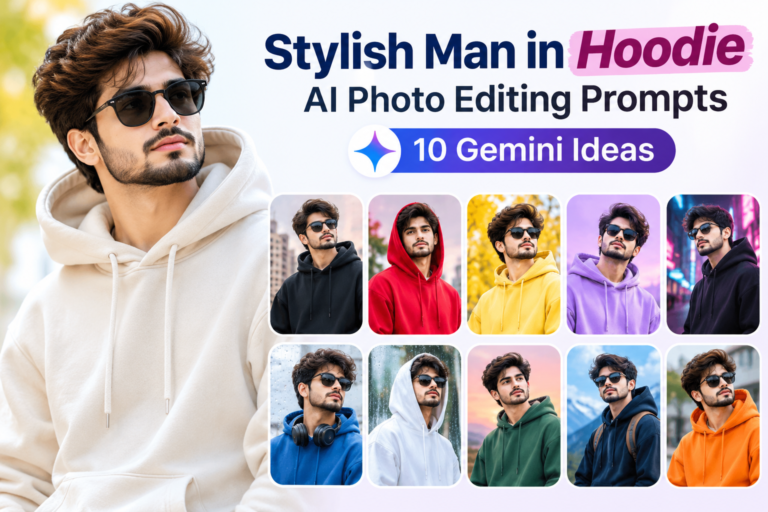 Guide · 9 min readStylish Man in Hoodie AI Photo Editing PromptsStylish Man in Hoodie AI Photo Editing Prompts: 10 Trending Gemini Prompts for MenHoodies are one of the easiest ways to create…Read guide
We use cookies
We use cookies to make the site work, understand how it is used and show relevant ads. You can accept all or keep only the necessary ones. Privacy Policy