Your image is sent over HTTPS to an AI server to be enhanced and is not stored on this website. Avoid uploading private or sensitive pictures.
How to upscale an image with AI
Enlarge and sharpen low-resolution photos in three quick steps. No software to install and no account to create.
1
Upload your image
Drag a JPG, PNG or WebP file into the box, browse for one, or paste a screenshot from your clipboard. A low-resolution photo, an old scan or a small product shot all work.
2
Choose the upscale factor
Move the slider from 1x to 4x. The tool shows the exact output size before you start, so you know how large the new image will be.
3
Enhance and compare
The AI rebuilds sharper detail. Drag the comparison slider to check the result against the original, then download the enhanced image.
Why use this AI image enhancer
AI detail reconstruction
Instead of just stretching pixels, an AI model predicts believable edges, textures and fine detail so enlarged images look clean rather than blurry.
Face-aware enhancement
The tool detects faces and reports what it found, so portraits and group photos can be restored with a model suited to faces.
Upscale up to 4x
Enlarge from 1x to 4x in half-step increments, with the final pixel size shown before you start.
Before and after slider
Compare the original and the enhanced image in one frame, or switch to a side-by-side view.
No sign-up, no watermark
Open the page, add a picture and download the result. There is no account to create.
Works on every device
The interface is fully responsive, so you can enhance photos from a phone, tablet or desktop browser.
What is an AI image upscaler?
An AI image upscaler enlarges a picture and adds new detail using a neural network trained on large collections of images. Ordinary resizing only stretches the pixels you already have, which makes enlarged images look soft or blocky. An AI model has learned what edges, skin, fabric, foliage and text usually look like, so it can draw sharper, more natural detail at a larger size.
How does this image enhancer work?
When you select Upscale image, your picture is sent to an AI processing server together with the scale you chose. The server detects faces, picks a suitable restoration model, enhances the image and returns a larger file. The page then shows the result next to your original so you can compare them before downloading.
What affects the quality of the result?
The cleaner and larger your starting image, the better the output. Very small, heavily compressed or badly blurred pictures give the model less to work with. AI upscaling cannot recover information that is completely missing, so tiny text, license plates or fine numbers may still look invented. Always review the result before you rely on it.
How is my image handled?
Unlike tools that run only in your browser, AI upscaling needs a powerful server. Your image is sent over HTTPS to the AI service to be processed and the enhanced version is sent back. This website does not keep a copy of your image. Please avoid uploading private or sensitive pictures, and read this site’s privacy policy for details.
AI upscaling vs normal resizing
Both make an image bigger, but they do it very differently.
Feature
Normal resize
AI upscaling
How new pixels are made
Averages neighbouring pixels (bicubic or bilinear).
A trained neural network predicts plausible detail.
Edges and lines
Soft, with visible stair-stepping when enlarged.
Cleaner and more defined.
Textures
Smeared and flat.
Fine texture is rebuilt rather than blurred.
Faces
Blurry features at larger sizes.
Face-aware processing can restore eyes, skin and hair detail.
Best for
Small size changes.
Enlarging low-resolution photos 2x to 4x.
What you can use an image upscaler for
Online stores and listings
Bring small supplier photos up to the size marketplaces and product pages expect.
Old family photos
Restore detail in scanned prints and early digital photos before you share or print them.
Profile pictures and portraits
Sharpen faces in low-resolution portraits for profiles, ID uploads and team pages.
Printing and posters
Create a larger source image so prints, banners and posters look less pixelated.
Social media and blogs
Rescue compressed or cropped images so thumbnails and hero pictures stay crisp on large screens.
Design and mockups
Enlarge reference images, textures and stock previews when you need more pixels to work with.
Tips for the best upscaling results
A few habits make a visible difference to the final quality.
Start with the best-quality original you have. Avoid screenshots of screenshots.
Use 2x for a safe, natural result and 4x when you need maximum size.
Heavily compressed JPGs upscale better after you remove obvious blocky artifacts, if you can.
Crop to the important area first. Smaller inputs process faster.
Check faces, text and fine patterns in the comparison slider before you publish.
Keep the original file. AI upscaling adds believable detail, not recovered facts.
Frequently asked questions
Is this AI image upscaler free?
Yes. You can enhance images on this page without creating an account, and the downloaded image has no watermark.
How do I upscale an image online?
Upload or paste an image, choose a scale from 1x to 4x, and select Upscale image. When processing finishes, compare the result with the original and download the enhanced file.
What does 2x or 4x mean?
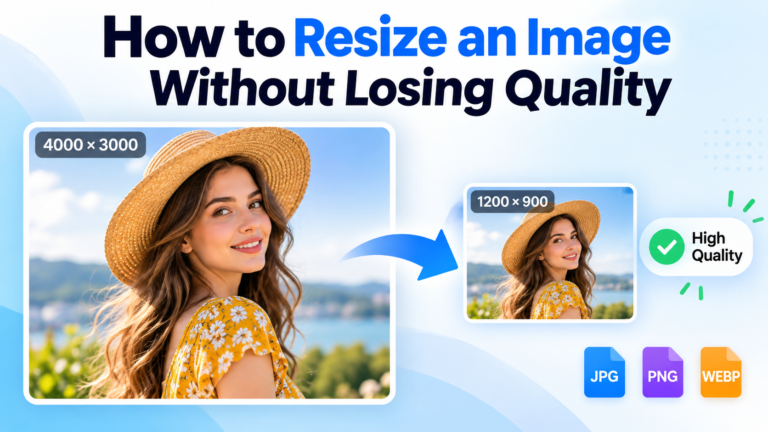
The scale multiplies the width and height. A 1000 x 800 pixel image at 2x becomes 2000 x 1600 pixels, and at 4x becomes 4000 x 3200 pixels. That is four or sixteen times as many pixels in total.
Which image formats are supported?
JPG, PNG and WebP images are supported. The enhanced image is returned as a downloadable image file.
Can it improve blurry or low-resolution photos?
It can make low-resolution photos look sharper and cleaner, especially at 2x. Very blurry images improve less, because the AI can only add believable detail, not recover what the camera never captured.
Does it work on faces and portraits?
Yes. The tool detects faces in your image and uses that information when choosing how to enhance it. The result panel shows how many faces were detected.
Is my image uploaded to a server?
Yes. AI upscaling runs on a server, so your image is sent over HTTPS to be processed and the result is returned to your browser. This site does not keep a copy. Avoid uploading sensitive pictures.
Why is processing slow sometimes?
Large images, high scale factors and busy servers take longer. If the AI server has been idle, the first request can also take a minute or more while it wakes up. A smaller image or a lower scale is faster.
Is there a size limit?
The maximum upload size is shown in the upload box. Very large images are reduced to a sensible working size before upload, because upscaling a huge image rarely adds value and takes much longer.
Will the upscaled image be as good as a real high-resolution photo?
No upscaler can match a genuine high-resolution capture, but a good AI model comes much closer than normal resizing. Judge the result with the comparison slider and keep your original file.
Does it work on mobile?
Yes. You can choose a photo from your gallery or take a new one, and the comparison slider works with touch.
AI upscaling adds believable detail but cannot recover information that was never captured. Review results before you publish or print them.
We use cookies to make the site work, understand how it is used and show relevant ads. You can accept all or keep only the necessary ones. Privacy Policy