About this free online PDF editor
A PDF editor that stays on your device
Most online PDF tools ask you to upload your file to someone else’s server. This one does not. The editor loads into your browser and does all the work there, so a contract, a payslip or a school form never leaves your computer or phone. Close the tab and it is gone.
What you can get done in a few minutes
Put pages in the right order, turn a sideways scan upright, and remove the ones you do not need. Join several files into one, or pull out just the pages you want to send. Fill in a form, sign it, add a note or a highlight, and number the pages. You can also turn photos into a PDF, or save the pages of a PDF as pictures.
Who it is for
Students sending an assignment, freelancers signing an agreement, small offices tidying a scanned pile, and anyone who just needs to fill in a form without installing software. If you can drag a file onto a web page, you can use it.
Tips for the best result
Work in this order: arrange the pages first, then fill in and mark up, then add page numbers or a watermark last, and download once. Use Undo freely. For a clean signature, sign slowly on a large screen and keep the image small on the page. Keep your original file until you have checked the downloaded copy.
What it does not do
It does not change the original text inside a page, it cannot open or add a password, and it does not read text from scanned pictures. Signatures are pictures, not certified digital signatures. Being clear about this means you can pick the right tool for each job.
Frequently asked questions
Is my PDF uploaded to your server?
No. The editor runs entirely in your browser, so your document stays on your device while you work on it.
Do I need to create an account or install anything?
No account and no download. Open this page in a modern browser, launch the editor and start.
Can I fill in a PDF form?
Yes. Open the form, switch to “Edit page” and click the fields. Text boxes, checkboxes, radio buttons and drop-downs are supported. Your answers are written into the file when you download it.
Is the signature legally binding?
The signature tool places a picture of your handwriting on the page, which many everyday forms accept. It is not a certified digital signature. If a contract needs one, ask the other party which kind they require.
Can I edit the existing text inside a PDF?
Not directly. You can add new text on top of a page, highlight, draw and place images. The original text of the file is left untouched.
Can I open a password protected PDF?
Not in this editor. Remove the password in the program that created the file, then open the unprotected copy here. The editor also cannot add a password.
Can it read text from scanned pages?
No. A scan is a picture, and this editor does not do text recognition (OCR). Search and text extraction work on PDFs that already contain real text.
Can I merge or split PDF files?
Yes. Use Add PDF to join files, Extract to copy chosen pages into a new file, and Split to divide a document into parts that download together as a ZIP.
How big a file can I open?
There is no fixed limit. Because your device does the work, very large files depend on your memory. If a file is slow, work on a few pages at a time with Extract.
Which characters can I type?
Added text uses a standard Latin font, so letters, numbers and common symbols work. Characters outside it, such as Chinese or emoji, are replaced with a question mark.
Which browsers work best?
Recent versions of Chrome, Edge, Firefox and Safari work, on desktop and on phones. Use the full screen button for more room on small screens.

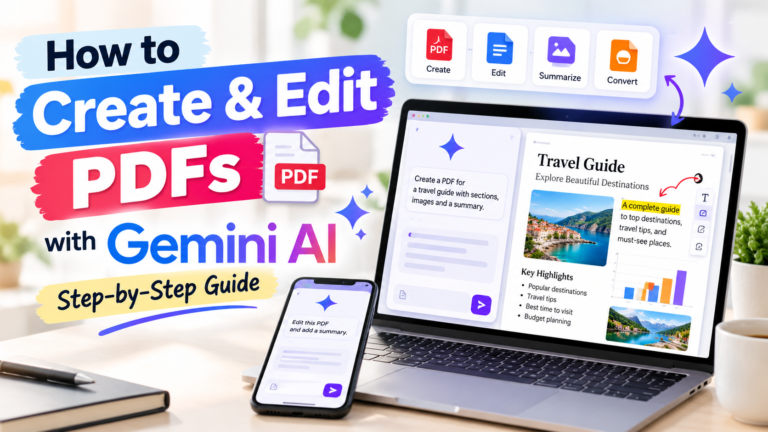 How to Create and Edit PDFs with Gemini AIYou Can Now Use Gemini to Create and Edit PDFs, Presentations, and Other Documents: Here's HowCreating documents, preparing presentations, and editing PDF…Read guide
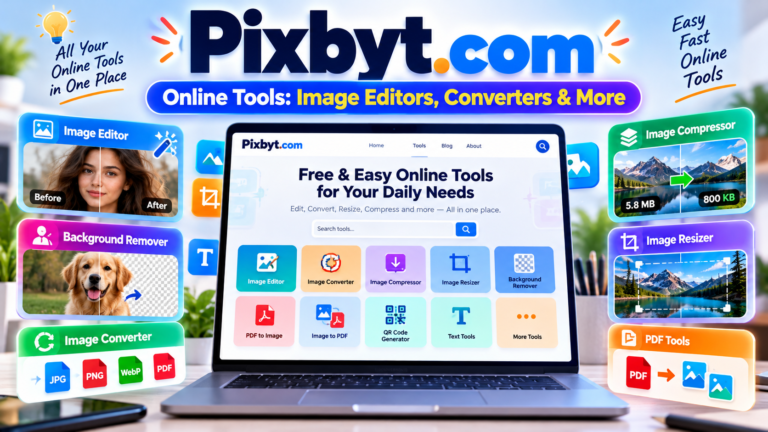 Pixbyt.com Online Tools: Image Editors, Converters & MorePixbyt.com: Explore Online Image Tools, AI Photo Editors, and Useful Web ToolsEditing images, converting files, resizing photos, and creating content for social…Read guide
 Create Invoices and Payment Reports with Gemini AIHow to Create Professional Invoices, Quotations, and Payment Reports Using Gemini AIManaging invoices, preparing client quotations, and tracking payments are important parts…Read guide
 Create Meeting Notes and Action Trackers with GeminiHow to Create Meeting Notes and Action Item Trackers Using Gemini AIMeetings are an important part of managing a business, working with…Read guide