Convert PDF pages to images without installing anything
Sometimes a PDF is simply the wrong container. You want one page in a slide deck, a chart for social media, a scanned receipt for a form that only accepts JPG, or a quick preview that opens on any phone. This free PDF to image converter does exactly that: pick a file, choose a format, and get a clean picture of every page you select.
PNG, JPG or WebP: which one should you pick?
PNG keeps letters and thin lines razor sharp, so it is the safe choice for contracts, invoices and slides. JPG produces smaller files and suits pages full of photos. WebP usually lands in the middle with good quality at a lighter size, and every modern browser can open it.
Private by design
The work happens inside your browser, using your own device. Your PDF is not uploaded to a server, which makes this a comfortable way to handle ID scans, bank statements and anything else you would rather keep to yourself. Close the tab and it is all gone.
Control the quality
Use 72 DPI for quick on-screen previews, 150 DPI for everyday sharing, and 300 DPI when you plan to print. If you only need a few pages, type a range such as 1-3, 5 and the rest will be skipped.
Frequently asked questions
Is this PDF to image converter really free?
Yes. There is no account, no daily limit and no watermark on your images.
Are my PDF files uploaded anywhere?
No. Everything is converted locally in your browser, so the file never leaves your device.
Can I convert only certain pages?
Yes. Type a range like 2-4, 7 and only those pages will be turned into images.
Which format is best for text-heavy documents?
PNG. It keeps the edges of letters clean, so small print stays readable.
What resolution should I use for printing?
300 DPI is the usual choice for print. For screens and social posts, 150 DPI is plenty.
Can I convert a password-protected PDF?
If you know the password, yes. You'll be asked for it before the pages are converted. If you want a copy that no longer needs a password, try the Unlock PDF tool.
Why is my large PDF slow to convert?
Each page is drawn at full resolution by your device. Lowering the DPI or converting fewer pages at a time makes it noticeably faster.

 How to Create PowerPoint Presentations with GeminiHow to Create Professional PowerPoint Presentations Using Gemini AICreating a professional PowerPoint presentation takes time. You need to plan the content, organise…Read guide
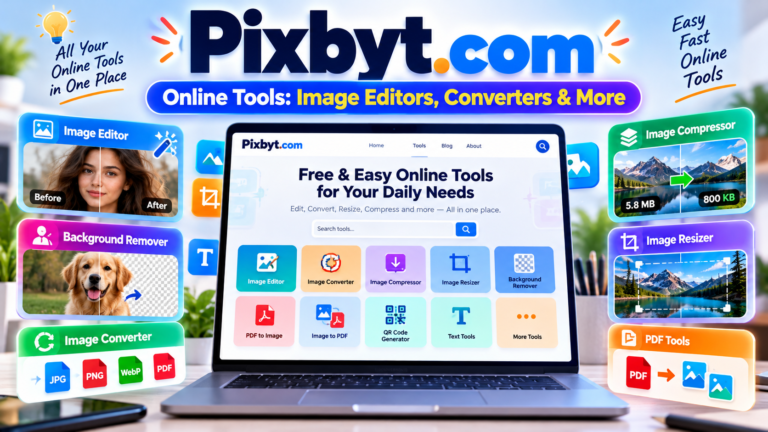 Pixbyt.com Online Tools: Image Editors, Converters & MorePixbyt.com: Explore Online Image Tools, AI Photo Editors, and Useful Web ToolsEditing images, converting files, resizing photos, and creating content for social…Read guide
 WhatsApp Storage Full? Delete Large Photos and VideosIs your phone showing a storage-full warning because of WhatsApp? If you regularly receive photos, videos, documents, voice messages, and forwarded clips,…Read guide