
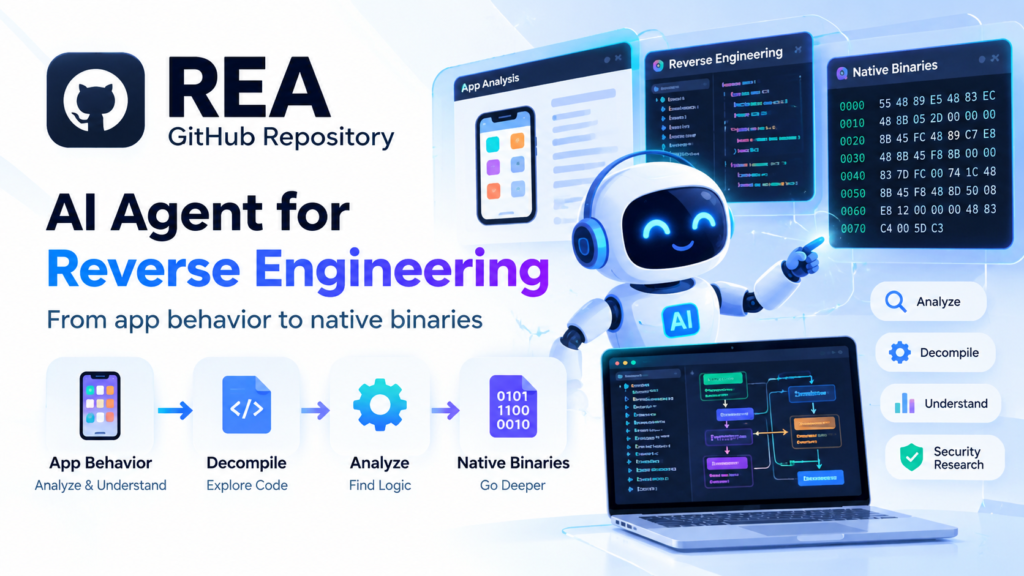
REA GitHub repository for AI agent reverse engineering and native binary analysis
By Advit
16 min read
Introduction: What Is REA?
Understanding how an application works is not always easy, especially when its source code is unavailable. A developer might find an interesting search feature in a desktop application, a useful interface interaction on a website, or a particular behavior inside compiled software. Recreating that functionality requires more than looking at the screen. You need to understand what happens behind the scenes.
This is where REA (Reverse Engineer Anything) comes in. REA is an open-source developer toolkit designed to help AI coding agents investigate software, analyze application structures, inspect compiled binaries, and follow evidence to understand how particular features work.
The project is available on GitHub at github.com/morluto/rea. It connects AI agents to reverse-engineering capabilities through a command-line interface (CLI) and the Model Context Protocol (MCP). Instead of manually switching between several analysis tools for every task, developers can ask a connected agent to investigate a target and guide the process using the available tools.
For example, you could ask an agent to understand how search works in a desktop notes application, identify the relevant functions, explain the implementation, and help build a similar feature using TypeScript and SQLite. REA can support the investigation, while the coding agent can use the findings to develop and test a separate implementation.
The important distinction is that REA helps developers understand and reconstruct software behavior. It does not promise to recover every line of original source code or automatically reproduce an entire application.
What Does the REA GitHub Project Do?
REA provides a shared interface for software investigation across different application types. It helps agents access analysis tools, collect findings, trace relationships between program components, and explain how a feature may work.
Traditional reverse engineering often involves several separate steps. A developer might inspect executable files in a disassembler, search for strings, examine function references, decompile selected routines, and then manually connect the findings. REA brings many of these activities into an agent-oriented workflow.
1. Investigating native binaries
Native applications are often distributed as compiled executables or libraries rather than readable source code. Depending on the target and configured analysis provider, REA can help inspect executable formats such as Mach-O, ELF, and PE.
Developers can investigate:
Function names and available symbols.
Strings embedded in an executable.
Assembly instructions and decompiled pseudocode.
Function calls and cross-references.
Relationships between relevant routines.
Program structure and selected metadata.
These findings help developers understand how a compiled program is organized and where a particular behavior might be implemented. Deep native analysis requires a compatible provider, such as Hopper, Ghidra, or IDA, according to the project’s supported configuration.
2. Analyzing JavaScript and Electron applications
JavaScript applications can become difficult to understand when distributed as bundles or packaged desktop software. Electron applications add another layer because they combine web technologies with desktop capabilities.
REA supports static investigation of JavaScript and Electron application artifacts. Depending on the available files, developers can examine modules, imports, routes, source maps, inter-process communication (IPC), storage references, and relationships between application components.
This can help answer questions such as:
Where is a particular feature implemented?
Which modules are connected to a specific screen?
How does an Electron application communicate between processes?
Which source files or bundled modules appear relevant to a feature?
Static analysis does not automatically reveal every runtime behavior. Dynamically generated relationships, external services, and ambiguous connections may require additional investigation.
3. Examining .NET software and packaged applications
REA also supports investigation of managed .NET artifacts and selected application packages. Depending on the target and configured tools, developers can examine assemblies, package contents, metadata, and related resources.
The broader workflow can help developers understand how software is packaged, identify useful components, and decide which parts deserve closer examination.
Support varies by format, platform, and analysis provider. Before starting a complex task, developers should consult the repository’s current documentation to confirm that the required operation is available.
4. Connecting findings to a new implementation
One of REA’s most useful ideas is the connection between understanding software and building something new.
Imagine that you want to add offline search to your own notes application. You have found another application with the behavior you want to understand, but its source code is unavailable.
You can ask your agent to investigate the relevant feature, collect evidence about the underlying implementation, explain the important design choices, and then build an independent version using your preferred programming language and database.
REA supports the investigation stage. Your coding agent performs the implementation and testing using its normal development tools. This separation makes the workflow more practical than treating reverse engineering as an automatic application-cloning process.
Key Features of REA
REA is designed to make complex investigation workflows easier to manage. Its most useful capabilities include the following.
AI agent integration through MCP
The Model Context Protocol allows compatible AI applications to communicate with external tools through a defined interface. REA uses MCP to expose its reverse-engineering capabilities to supported coding agents.
Once configured, an agent can call relevant tools as part of a broader task rather than relying only on the information already present in a conversation.
Command-line interface
REA also provides CLI commands for developers who prefer working in a terminal. You can use the command line for supported analysis operations, diagnostics, provider selection, and other documented workflows.
This is useful for developers who want to investigate a specific file without conducting an entire conversation with an AI agent.
Evidence-based investigation
Reverse engineering involves uncertainty. A string found inside a binary does not necessarily prove that the application uses it in a particular feature, and a decompiler’s output is not the same as original source code.
REA returns findings and evidence that help an agent explain its conclusions. Developers can use that information to distinguish observed facts from interpretations, identify unresolved questions, and decide which investigation step to take next.
Local analysis
REA is designed to analyze supported artifacts on the local machine rather than sending them to a REA-hosted analysis service. This can be valuable when working with proprietary applications or internal software.
However, local analysis does not mean that every part of the workflow is automatically private. Your AI agent or model provider may have its own data-handling policies, so review those policies before analyzing confidential material.
How to Install and Set Up REA
Getting started is easiest when you already have Node.js and npm installed and a compatible AI coding agent available.
Step 1: Check the requirements
The repository documents support for Node.js 22.x from version 22.19, Node.js 24.x from version 24.11, and Node.js 26 or newer, together with npm. Supported operating systems and additional requirements depend on the analysis task.
Native binary analysis generally requires a compatible analysis provider. Static JavaScript analysis can be used without installing a native decompiler.
Check the latest REA installation guide before proceeding because requirements can change between releases.
Step 2: Run the setup command
Open your terminal and execute:
npx rea-agents setupTo explicitly request the latest published package, use:
npx --yes rea-agents@latest setupThe setup process guides you through the available configuration options. Select the AI agents you want to connect, review the planned changes, and approve the changes you intend to make.
Setup can register the REA MCP server and install the corresponding workflow instructions. It can also help configure supported analysis providers. Optional external software installations require their own approval.
Step 3: Restart your AI coding agent
After setup finishes, restart or reconnect the selected agent so it can load the updated MCP configuration.
The exact steps depend on the application you use. Follow the repository’s installation guide for the configuration method supported by your client.
Step 4: Verify your installation
You can run the documented diagnostic command:
npx -y rea-agents@latest doctorThis checks relevant prerequisites, analysis tools, and agent configuration. If an operation requires a native analysis provider, confirm that the provider is installed and configured for the target.
Step 5: Start with a small investigation
Choose a software artifact you own or are authorized to analyze. Begin with a basic overview or a focused question about one feature.
For example, you could ask your agent to identify the modules related to a search screen, explain the available evidence, and list any unanswered questions. A narrow first task makes it easier to check whether the results are useful before moving to a larger investigation.
How to Use REA with an AI Coding Agent
After setup, the main workflow is conversational. You describe the software you want to understand, explain the behavior that interests you, and ask the agent to investigate it using REA.
Consider a developer who wants to understand offline search in an existing notes application.
Step 1: Identify the target. Tell the agent which application or executable to inspect. If it cannot identify the application unambiguously, provide the full path to the relevant file.
Step 2: Describe the question. Instead of asking the agent to explain the entire application, request an investigation of offline search, including the relevant functions and supporting evidence.
Step 3: Trace the implementation. The agent can use available REA tools to inspect strings, functions, references, call relationships, and decompiled routines where supported.
Step 4: Review the findings. Ask the agent to distinguish confirmed evidence from assumptions. If the implementation remains unclear, investigate the missing part rather than treating an early hypothesis as fact.
Step 5: Build an independent feature. Once the behavior is sufficiently understood, ask the coding agent to implement a similar capability in your own project and test it against your requirements.
A useful starting prompt is:
Investigate how offline search works in this application. Identify the relevant modules or functions, show the evidence behind your conclusions, explain any uncertainties, and suggest an implementation for my own project using TypeScript and SQLite.
This approach gives the investigation a clear objective and makes it easier to review the results.
Using REA from the Command Line
You do not always need to start with a full agent conversation. REA’s CLI supports several documented workflows.
For example, the following commands illustrate common tasks:
# Set up REA
npx rea-agents setup

# Check prerequisites and configuration
npx -y rea-agents@latest doctor

# Analyze a supported application
npx -y rea-agents@latest analyze /path/to/application

# Inspect available capabilities
npx -y rea-agents@latest capabilities
Replace /path/to/application with the actual path to your target. The analysis command requires a target type and provider combination supported by your installation.
For static JavaScript or Electron investigation, the repository also documents a dedicated command:
npx -y rea-agents@latest analyze-javascript-application /path/to/app --jsonUse an extracted application directory or supported ASAR artifact as appropriate. The JSON output can help developers and scripts work with structured findings.
These examples are starting points, not guarantees that every command will work on every operating system. Use the current CLI help and documentation for exact options and provider-specific requirements.
What Can Developers Build with REA?
REA is primarily an investigation toolkit, but its findings can support several kinds of engineering work.
Reimplementing useful software features
A developer may want to understand how another application handles search, document previews, keyboard shortcuts, caching, or file processing. REA can help investigate the relevant implementation so the developer can design a comparable feature for a separate project.
Debugging and compatibility research
When software behaves differently across versions or environments, reverse engineering can help reveal implementation differences. REA’s available inspection and comparison workflows can support this research when the relevant artifacts and operations are supported.
Security research and software auditing
Authorized security researchers can investigate executable structure, suspicious strings, function relationships, and other indicators that deserve closer examination. These findings can support a broader review, although they do not replace comprehensive security testing or prove that software is safe.
Software maintenance and preservation
Developers working with older applications or undocumented software may need to understand behavior that is no longer explained in available documentation. REA can help organize that investigation and provide evidence that supports maintenance or interoperability work.
In each case, the value comes from asking a specific question, collecting relevant evidence, and validating the conclusions before making engineering decisions.
Which Technologies and Tools Does REA Use?
REA is built around an agent-facing CLI and MCP workflow. Its supported analysis capabilities connect to different tools depending on the artifact being investigated.
| Technology or tool | Purpose |
|---|---|
| Node.js and npm | Run and install the REA CLI |
| MCP | Connect compatible AI agents to analysis tools |
| Hopper | Perform supported native binary analysis |
| Ghidra | Provide native binary analysis through an existing installation |
| IDA | Provide supported native analysis through a configured installation |
| JavaScript analysis | Inspect modules, imports, and application relationships |
| .NET analysis | Investigate supported managed application artifacts |
Not every developer needs every tool. If your main goal is to inspect JavaScript application bundles, you may not need a native decompiler. If you want to examine compiled native functions, you will need a compatible analysis provider.
Hopper is separate software with its own licensing terms. REA does not include a Hopper license. Similarly, Ghidra and IDA must be available in a supported configuration for the relevant workflows.
Advantages and Limitations of REA
Advantages
REA offers a consistent workflow for several reverse-engineering tasks, reducing the need to manually coordinate every tool and intermediate result.
Its main benefits include:
Agent-assisted investigation: Describe a feature in ordinary language and let a compatible agent coordinate the supported tools.
Multiple analysis paths: Work with supported native binaries, JavaScript and Electron applications, and managed artifacts.
CLI and MCP access: Choose terminal commands or an integrated coding-agent workflow.
Evidence-focused results: Review the findings supporting an explanation instead of relying entirely on an unsupported guess.
Local artifact analysis: Investigate software on a supported local host without using a REA-hosted analysis service.
A bridge to implementation: Use the findings to guide a separate, independently developed feature.
Limitations to understand
REA is not a universal decompiler that can reconstruct any application perfectly. Compiler optimizations, missing symbols, obfuscation, dynamic behavior, and unavailable dependencies can make conclusions difficult to establish.
Some tasks also depend on external tools, platform support, and the exact artifact format. Runtime investigation may require additional setup beyond static analysis.
AI-generated explanations can still be wrong. Developers should verify important conclusions against the evidence, test any reconstructed behavior, and treat unresolved questions as unresolved.
Finally, reverse engineering should respect software licenses, privacy, and applicable law. Analyze software you own or have permission to examine, and avoid using the toolkit to bypass protections or access data without authorization.
Is REA Suitable for Beginners?
REA can be approachable for developers who are comfortable using an AI coding agent, but the underlying subject can still be technically demanding.
Beginners may find it easiest to start with JavaScript or Electron analysis because static investigation does not require a native analysis engine. A simple question about module relationships can provide a practical introduction to the workflow.
Developers who want to inspect native binaries should first become familiar with executable formats, functions, assembly, symbols, and decompilation. REA can help explain these concepts in context, but a basic understanding of software architecture and debugging will make the results much easier to evaluate.
For experienced developers, reverse-engineering specialists, security researchers, and software maintainers, the toolkit can provide a more organized way to investigate unfamiliar software.
How to Get the Most Out of the Project
Start with a question that can be answered using a limited amount of evidence. Rather than asking an agent to explain an entire application, focus on a particular feature, function, module, or behavior.
Keep track of which findings are confirmed and which remain hypotheses. When the evidence is incomplete, ask a follow-up question or use another supported analysis method.
If you plan to recreate a feature, define your own requirements before writing code. The objective should be to implement the behavior your project needs, not to assume that the original application’s internal design is the only correct solution.
It is also worth checking the repository regularly for updated installation instructions, new capabilities, fixes, and changes to supported providers.
Frequently Asked Questions
1. What is the REA GitHub repository?
REA, or Reverse Engineer Anything, is an open-source project that helps AI coding agents investigate software using reverse-engineering tools. It provides CLI and MCP workflows for supported application artifacts and native binaries.
2. Is REA open source?
The official repository identifies its license as MIT. Review the license file and the licensing terms of any external analysis software you use alongside it.
3. Does REA require an AI agent?
No. You can use supported CLI commands directly from a terminal. An AI coding agent provides the conversational workflow and can use the analysis results to explain findings or help implement a feature.
4. Can REA analyze applications without source code?
Yes, for supported artifact types and analysis operations. It can investigate compiled binaries and packaged applications, but the amount of information recovered depends on the target and available analysis tools.
5. Does REA recover the original source code?
Not reliably or completely. Native decompilation produces pseudocode, while JavaScript analysis can recover useful module relationships and other information. These results can help a developer understand or recreate behavior, but they are not guaranteed to match the original source.
6. Do I need Ghidra or Hopper?
It depends on the task. Deep native binary analysis requires a compatible provider such as Hopper, Ghidra, or IDA. Static JavaScript analysis does not require a native analysis engine.
7. Does REA upload my application?
REA is designed for local analysis rather than a REA-hosted analysis service. However, the connected AI agent or model provider may handle submitted context according to its own policies, so review those settings before analyzing confidential files.
8. Where can I find the installation instructions?
Visit the official REA GitHub repository and its installation guide for current requirements and setup instructions.
Conclusion
REA demonstrates how AI agents can make software reverse engineering more accessible and organized. By connecting a coding agent to tools for examining application structure, tracing functions, and inspecting native binaries, it helps developers move from an initial question to an evidence-based explanation of how software works.
Its greatest value is not that it magically reproduces any application. Instead, it provides a structured way to investigate unfamiliar software, understand useful features, and apply those findings to new development work.
If you are a developer interested in AI-assisted reverse engineering, software compatibility, application analysis, or understanding compiled programs, REA is worth exploring. Start with a focused investigation, verify the results, and use what you learn to build and test your own implementation.
Explore the project: REA on GitHub