
By Advit
16 min read
Pixbyt.com: Explore Online Image Tools, AI Photo Editors, and Useful Web Tools
Editing images, converting files, resizing photos, and creating content for social media are common tasks for many people. Sometimes, you only need to crop a picture. Other times, you may want to remove a background, compress a large video, create a QR code, or convert an image into another format.
Installing separate software for every small task can take time and use valuable storage space. Online tools offer another option by allowing you to complete many everyday tasks directly through a web browser.
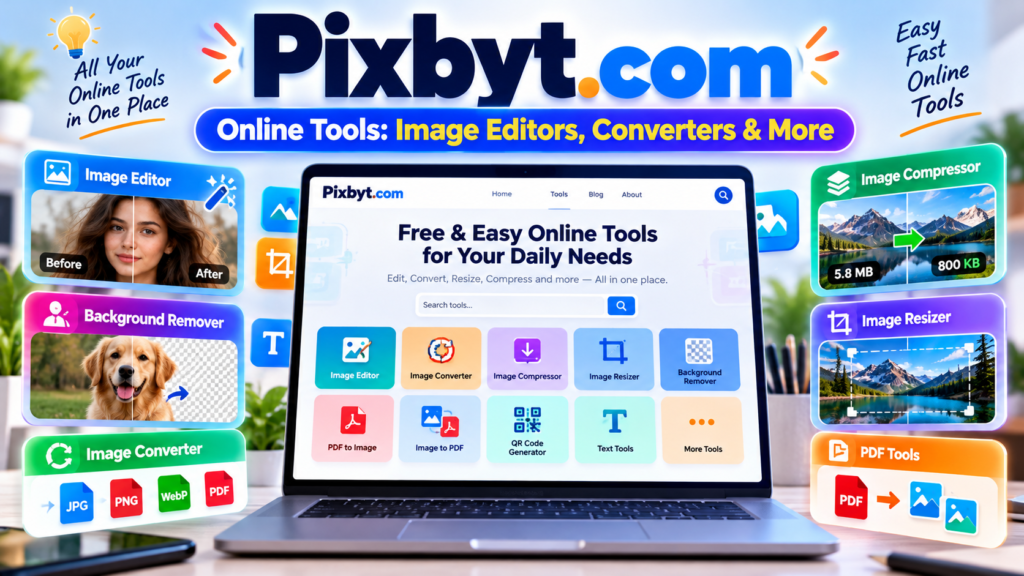
Pixbyt.com brings together a collection of online image tools, AI-powered photo editing features, file converters, video utilities, and text tools. Whether you are preparing images for a website, creating social media graphics, or working with different file formats, you can explore tools designed for a variety of needs.
In this guide, we will look at the different tools available on Pixbyt.com, explain what they are used for, and help you choose the right one for your next project.
What Is Pixbyt.com?
Pixbyt.com is an online platform offering tools for image editing, image conversion, file processing, and creative content tasks. Its collection includes utilities for working with photographs, graphics, documents, videos, and text.
You might use an image converter when a website does not accept your current file format, an image compressor when a picture is too large, or a background remover when you need a cleaner product photo.
The platform also includes creative tools for generating text effects, editing portraits, creating identification photos, and preparing content for social media.
Instead of searching for a different application for every small task, you can explore the available tools on one website and select the one that matches your requirements.
1. Online Image Editing Tools
Images are used everywhere, from blog posts and online stores to social media profiles and personal photo collections. The right editing tool can help you prepare an image for its intended purpose.
Pixbyt.com includes several tools for editing, improving, and preparing images.
Free Photo Editor
The Free Photo Editor is designed for users who want to make changes to pictures without relying entirely on desktop editing software. Photo editing can involve adjusting an image’s appearance, improving its presentation, and preparing it for sharing.
It can be a useful starting point when you want to edit a photograph for a personal project or online content.
Online Image Cropper
The Online Image Cropper helps you remove unwanted parts of an image and focus on the subject that matters most.
Cropping is useful when preparing profile pictures, blog illustrations, product photographs, or images that need a particular composition.
For example, you can crop a photograph to focus on a person’s face or remove distracting space around an object.
Image Background Remover Online
Removing a background can make a photograph more suitable for different designs. A product image with a clean background, for example, can look more consistent in an online catalogue.
The Image Background Remover Online is intended for removing the background from a picture so that the subject can be used in another design or setting.
This can be helpful for product photos, profile images, promotional graphics, and creative projects. Always check the edges around hair, transparent objects, and fine details after processing.
Upscale Images Online with AI
Low-resolution images can appear blurry when enlarged. AI image upscaling tools attempt to increase image dimensions while reconstructing details.
Pixbyt.com’s AI image upscaling tool is useful to explore when you want to enlarge a picture for a design, presentation, or other visual project.
Keep in mind that upscaling cannot guarantee the recovery of details that were never present in the original image. Check the result carefully, particularly when working with faces, small text, or detailed patterns.
Pixbyt Image Optimizer
Large image files can slow down websites and take longer to upload or share. An image optimizer helps reduce file size while aiming to maintain acceptable visual quality.
The Pixbyt Image Optimizer can be useful when preparing images for blog posts, web pages, online stores, and other digital content.
For the best results, compare the optimised image with the original. Excessive compression may reduce detail or make an image look less sharp.
Free AI Online Watermark Remover
Watermarks may appear across images used for previews, design drafts, or other purposes. Pixbyt.com lists an AI-powered watermark removal tool for processing supported images.
Before using any watermark removal feature, make sure you own the image or have permission to modify it. Do not remove copyright notices, creator credits, or ownership marks from someone else’s work without authorisation.
ID Photo Maker
Identification photos often need specific dimensions, a suitable background, and a clear view of the person’s face.
The ID Photo Maker is intended to help users prepare photos for identification-related purposes.
Requirements vary by country and document type. Before submitting an edited image for an official application, check the relevant authority’s rules for photo dimensions, background colour, head position, and other requirements.
AI Face Swap Online
Face-swapping tools use AI to place one person’s face into another image or create a face-swapped visual effect.
This type of tool can be useful for authorised creative projects and entertainment. Use photographs with permission, avoid misleading people, and do not create deceptive or harmful images of others.
The final result should be reviewed for unnatural blending, inconsistent lighting, and other visual errors.
2. Image Conversion Tools
Different applications and websites support different image formats. A photo that works in one place may need to be converted before it can be used somewhere else.
Pixbyt.com includes several converters for common image formats.
JPG to PNG Converter Online
The JPG to PNG Converter Online helps users change a JPG or JPEG image into PNG format.
PNG can be useful when you need lossless file storage or want to continue editing a graphic. However, converting a JPG to PNG does not restore image details that were lost during earlier compression.
Also, converting a JPG to PNG does not automatically create a transparent background.
PNG to JPG Converter
PNG files can be relatively large when they contain photographs. Converting a suitable PNG image to JPG may reduce its file size.
This tool can be useful when you want a more compact photograph for sharing or uploading.
Remember that JPG does not support transparency. Transparent areas in a PNG may be replaced with a solid background during conversion.
WebP to JPG Converter
WebP is a modern image format often used to reduce website image sizes. However, some applications and older workflows may work more conveniently with JPG files.
The WebP to JPG Converter can help you prepare compatible image files for such situations.
Since JPG uses lossy compression, the quality of the converted image depends on the conversion settings and source file.
WebP to PNG Converter
The WebP to PNG Converter is useful when you need a PNG version of a WebP image for editing or compatibility.
PNG supports transparency and lossless compression, making it useful for graphics that need those features. Converting a lossy WebP image to PNG does not recover the information already lost during compression.
HEIC to JPG Converter
HEIC is an image format commonly associated with photographs taken on Apple devices. Some applications and websites may not accept HEIC files.
The HEIC to JPG Converter can help users create a JPG version for broader compatibility with applications that support JPG.
This is particularly useful when sharing photos with people or services that cannot open the original file format.
WebP to PNG and Other Image Format Choices
When selecting an image format, think about how you will use the picture.
JPG is commonly used for photographs.
PNG is useful for transparent graphics and lossless storage.
WebP is often suitable for website images.
HEIC is commonly used in some modern phone photography workflows.
The smallest file is not always the best choice. Image quality, transparency, compatibility, and intended use should all be considered.
3. Image and File Conversion Utilities
Sometimes, your task involves more than changing an image format. You may need to create a PDF, extract text from a picture, or work with a document.
Pixbyt.com also offers tools for these types of tasks.
Image to PDF Converter
The Image to PDF Converter helps users turn supported image files into a PDF document.
This can be useful when preparing scanned pages, photographs, receipts, or other images for sharing as a document.
Before sending the PDF, check the page order, image orientation, and readability of the content.
PDF to Image Converter
A PDF may contain diagrams, scanned pages, photographs, or other visual information. A PDF to Image Converter can turn supported PDF pages into image files.
This can be useful when you need to use a page as a graphic in a presentation or share an individual page as an image.
The output quality depends on the conversion settings and the contents of the original PDF.
Online PDF Editor
PDF documents are often used for forms, reports, instructions, and business documents. An online PDF editor can help with supported document editing tasks through a browser.
Before editing an important document, keep a copy of the original. After processing, check that the layout, text, and formatting remain correct.
Extract Text from Image
Typing text from a screenshot or scanned document can be time-consuming. Text extraction tools use optical character recognition, commonly called OCR, to identify text within an image.
The Extract Text from Image tool is useful when you want to capture text from a supported photograph, screenshot, or scanned page.
OCR results are not always perfect. Review the extracted text for spelling mistakes, missing characters, incorrect numbers, and formatting problems before using it.
4. Online Video and GIF Tools
Video files can become large, especially when they have high resolution or long durations. Animated GIFs can also use considerable storage space.
Pixbyt.com includes video and GIF utilities for common media tasks.
Video Compressor
A video compressor reduces the amount of storage space a video uses by adjusting supported encoding or quality settings.
This can be helpful when uploading a clip, sending a video, or preparing media for a website.
Compression usually involves a balance between file size and visual quality. Check the exported video to make sure the picture, sound, and duration remain acceptable.
Video to GIF Converter
GIF animations are often used for short demonstrations, reactions, and simple looping visuals.
The Video to GIF Converter helps users turn supported video clips into animated GIF files.
Short clips usually work better than long videos because GIF files can become large. Consider trimming the clip and selecting suitable dimensions before converting it.
GIF Compressor
Animated GIFs may become large when they contain many frames or high-resolution imagery.
The GIF Compressor is intended to reduce the size of supported GIF files, helping make them easier to upload or share.
After compression, check the animation for colour changes, unwanted artefacts, or missing frames.
Online Audio Extractor
Sometimes you need the audio from a video without the video picture itself. An audio extraction tool can separate the audio track from a supported video file.
Pixbyt.com’s Online Audio Extractor is designed for this type of task.
Use it with media you own or have permission to process, and confirm that the output format suits your intended use.
5. Social Media and Creative Design Tools
Preparing content for social media often requires the right dimensions, attractive text, and clear visual presentation.
Pixbyt.com includes tools that can help with these everyday creative tasks.
Social Media Image Resizer
Different social media placements use different image dimensions. A profile picture, story, feed post, and video thumbnail may each have different requirements.
The Social Media Image Resizer helps users prepare images for different display sizes.
Before publishing, check the platform’s current image requirements. Keep important text and visual elements away from edges where cropping may occur.
Word Art and Word Cloud Generator
Word art and word clouds turn words into visual designs. They can be useful for classroom activities, presentations, posters, and creative content.
The Word Art & Word Cloud Generator is intended for creating text-based graphics from words or phrases.
For a clear result, choose relevant words, avoid overcrowding the design, and make sure the text remains readable at the final display size.
Animated Text GIF Generator
Animated text can add movement to a message, title, or simple visual announcement.
The Animated Text GIF Generator helps users explore animated text designs for supported projects.
Keep animations readable and avoid excessive movement when the image is intended for a professional presentation or information-heavy page.
Fancy Text Generator
A Fancy Text Generator creates decorative text styles that can be used in supported social media posts, profiles, and creative messages.
Different platforms may display decorative Unicode characters differently. Some styles may also be less accessible to screen readers, so ordinary text is often preferable for important information.
Free Color Picker
Choosing colours is an important part of designing images, websites, and social media graphics.
The Free Color Picker helps users explore or select colours for creative projects.
When designing a website, use colour combinations with sufficient contrast so that text remains readable for people with different visual needs.
Character Counter Online
Character limits are common in social media posts, forms, titles, and short descriptions.
The Character Counter Online tool helps users count characters and words in a piece of text.
It can be useful when preparing a short caption, checking a title length, or editing content to fit a particular requirement. Always confirm how the destination platform counts spaces, emojis, and special characters.
6. QR Code Generation Tools
QR codes provide a convenient way to let people access information by scanning a code with a compatible device.
Pixbyt.com offers two QR code-related tools for different purposes.
QR Code Generator Online
The QR Code Generator Online helps users create QR codes for supported content, such as a web address or other information accepted by the tool.
QR codes can be useful on business cards, posters, product packaging, printed notices, and event materials.
After generating a code, scan it with a phone to make sure it opens the correct destination before printing or sharing it.
Event QR Code Generator
Events often involve sharing schedules, registration information, locations, or other details with attendees.
The Event QR Code Generator is intended for creating QR codes for event-related uses supported by the tool.
Before distributing the code, test it on different devices and ensure that the linked event information is correct and accessible.
7. Other Useful Image and Calculation Tools
Some creative tasks require more specialised tools. Pixbyt.com also includes utilities for image resolution, video-related work, and other everyday needs.
PPI Calculator Online
PPI stands for pixels per inch. It describes pixel density and can help explain how an image’s pixel dimensions relate to its physical display or print size.
The PPI Calculator Online helps users calculate pixels per inch using the relevant image dimensions and size information.
This can be useful when preparing photographs for printing or checking the resolution of a digital image.
Remember that PPI alone does not determine print quality. The image’s pixel dimensions, viewing distance, printer capabilities, and print size also matter.
How to Choose the Right Pixbyt.com Tool
With different tools available, the easiest approach is to start with the task you want to complete.
Here are some examples:
| Your task | Tool to explore |
|---|---|
| Crop an unwanted part of a picture | Online Image Cropper |
| Reduce image file size | Pixbyt Image Optimizer |
| Remove a picture background | Image Background Remover Online |
| Enlarge an image using AI | Upscale Images Online with AI |
| Convert JPG into PNG | JPG to PNG Converter Online |
| Convert WebP into JPG | WebP to JPG Converter |
| Convert a PDF into images | PDF to Image Converter |
| Extract words from a screenshot | Extract Text from Image |
| Reduce video file size | Video Compressor |
| Turn a video clip into a GIF | Video to GIF Converter |
| Prepare images for social media | Social Media Image Resizer |
| Create a QR code | QR Code Generator Online |
| Create a word cloud | Word Art & Word Cloud Generator |
| Count words and characters | Character Counter Online |
| Calculate pixels per inch | PPI Calculator Online |
Choose a tool based on the file type, output you need, and features available on the relevant page.
Tips for Using Online Tools Safely
Online tools can make everyday tasks easier, but it is still important to handle files carefully.
Check the File Before Uploading
Make sure you have selected the correct photograph, video, or document. Avoid uploading sensitive personal or business files unless you understand how the service processes and handles uploaded content.
Keep an Original Copy
Before editing or converting a valuable image, save the original file. This makes it easier to try another format or recover from an unwanted change.
Review the Final Output
Always check the resulting file. Look for missing text, altered colours, compression artefacts, incorrect page order, or other problems that may affect your project.
Respect Copyright and Privacy
Use images, videos, and documents you own or have permission to process. Be careful when editing photographs of other people, especially when using face-swapping or AI editing features.
Check Important Requirements
For official ID photos, business documents, and professional projects, verify the applicable requirements before using an edited or converted file.
Frequently Asked Questions About Pixbyt.com
What is Pixbyt.com used for?
Pixbyt.com offers a collection of online utilities for image editing, image conversion, AI-assisted photo tasks, video processing, text creation, QR code generation, and other digital work.
Can I convert images between different formats?
Pixbyt.com lists several image converters, including JPG to PNG, PNG to JPG, WebP to JPG, WebP to PNG, and HEIC to JPG. Choose the converter that matches your input and desired output format.
Can I use Pixbyt.com to optimise images for websites?
The Pixbyt Image Optimizer can help you prepare images by reducing their file sizes. You should still check the result for visual quality and use appropriate image dimensions for your website.
Does Pixbyt.com include AI photo tools?
Yes, the listed tools include AI-assisted features such as online face swapping, image background removal, and image upscaling. The exact results depend on the tool and source image.
Can I use Pixbyt.com for social media content?
The listed tools include a Social Media Image Resizer, Fancy Text Generator, Word Art & Word Cloud Generator, Animated Text GIF Generator, and photo-editing utilities that may help with social media projects.
What should I do if a converted file does not look right?
Keep the original file, try suitable output settings, and compare the result. For lossy formats such as JPG, aggressive compression can affect quality. If the issue continues, another format or editing method may be more appropriate.
Final Thoughts
Online tools can simplify many everyday creative and technical tasks. Whether you need to crop a photograph, convert an image format, compress a video, create a QR code, or prepare a graphic for social media, choosing the right tool can save time and make your workflow more convenient.
Pixbyt.com brings these different categories together so you can explore the tools that suit your needs. Start with one task, choose the relevant utility, and check the result before using it in your project.
If you regularly work with photos, graphics, documents, or videos, bookmarking useful tools can also make future projects easier to manage.
Explore the available tools on Pixbyt.com and find a practical way to complete your next creative task.