
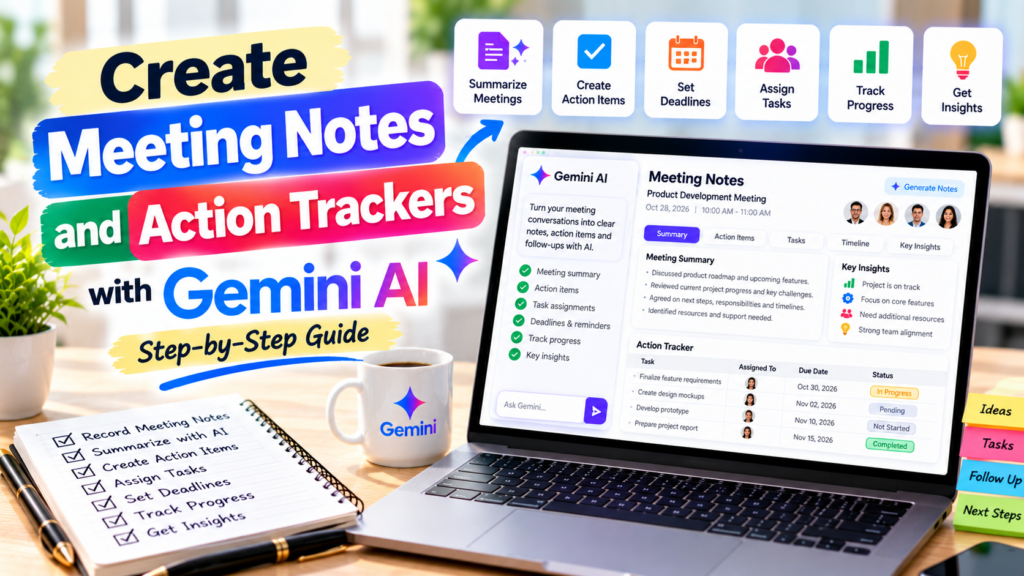
By Advit
16 min read
How to Create Meeting Notes and Action Item Trackers Using Gemini AI
Meetings are an important part of managing a business, working with clients, and coordinating team projects. However, remembering every discussion, decision, deadline, and assigned task can be difficult, especially when several people participate.
Gemini AI can help make meeting management easier. You can use it to summarise discussions, organise meeting notes, identify important decisions, prepare action items, and create follow-up trackers. Instead of manually organising every point, you can provide meeting information and ask Gemini to turn it into a structured document or spreadsheet.
Whether you manage business meetings, client discussions, project reviews, team meetings, or weekly planning sessions, Gemini can help you keep everything organised.
In this guide, you will learn how to create meeting notes and action item trackers using Gemini AI. You will also find step-by-step instructions, practical examples, and 15 ready-to-use prompts.
What Are Meeting Notes and Action Item Trackers?
Meeting notes are written records of the important points discussed during a meeting. They help participants remember what was discussed, what decisions were made, and what needs to happen next.
An action item tracker is a separate list of tasks that come out of a meeting. It identifies the person responsible for each task, the deadline, and the current status.
A useful meeting notes document usually includes:
Meeting title and date
Meeting participants
Meeting agenda
Main discussion points
Important decisions
Questions and concerns
Action items
Assigned team members
Deadlines and follow-up dates
Next meeting details
An action item tracker usually includes:
Action ID
Task description
Assigned person
Priority
Due date
Status
Completion percentage
Comments or updates
Keeping these two documents organised helps teams follow up on decisions instead of forgetting important tasks after a meeting.
What Can Gemini AI Do for Meeting Management?
Gemini can help with several meeting-related tasks, depending on the application and features available in your account.
You can use it to:
Prepare meeting agendas.
Summarise meeting transcripts.
Organise rough meeting notes.
Extract important decisions.
Identify action items.
Suggest task owners when responsibilities are clear.
Create follow-up checklists.
Prepare action item trackers in spreadsheets.
Write meeting summary emails.
Create weekly meeting reports.
Identify pending and overdue activities.
Prepare notes for the next meeting.
Google Meet also offers a feature called Take notes for me, which uses Gemini to capture meeting notes and action items during supported meetings. The notes are organised into a Google Doc and saved to Google Drive. Availability depends on your Google Workspace edition or Google AI plan, language, and account settings. <Cite refs={[“turn988179search1″,”turn988179search2”]}/>
Method 1: Create Meeting Notes Using the Gemini App
You can use the Gemini app to organise information from a meeting and turn it into professional meeting notes.
Step 1: Open Gemini
Visit Gemini and sign in with your Google account.
Start a new conversation. You can use this method after a meeting when you have written notes, a transcript, or a list of discussion points.
Step 2: Provide Your Meeting Information
Paste your meeting notes or upload a supported document containing the discussion.
For example:
“Meeting with the website development team. We discussed the homepage redesign, mobile responsiveness, website loading speed, content updates, and pending testing. The design team will complete the new homepage layout by Friday. The development team will review the responsive layout next week. Final testing is planned after the development updates.”
This is only sample information. Use the actual discussion details from your meeting.
Step 3: Ask Gemini to Organise the Notes
Use this prompt:
“Convert these meeting notes into a professional meeting summary. Include the meeting overview, main discussion points, important decisions, action items, responsible people, deadlines, pending questions, and next steps. Do not invent information that was not included in the notes.”
Step 4: Review the Generated Summary
Check the generated notes carefully.
Make sure that:
Important discussion points are included.
Decisions are recorded correctly.
Assigned people are accurate.
Deadlines match the meeting discussion.
Unconfirmed details are marked clearly.
Step 5: Create a Downloadable Meeting Document
Ask Gemini:
“Create a professional meeting notes document in DOCX format. Include a title, meeting date, participant list, discussion summary, decisions, action items table, and next meeting details. Use clear headings and readable formatting.”
Use the available download option to save the document.
Method 2: Use Gemini in Google Meet to Take Meeting Notes
Google Meet provides an AI note-taking feature called Take notes for me. It can capture important meeting information and prepare a summary automatically.
This is particularly useful when you want to focus on the conversation rather than writing every point manually.
Step 1: Open Google Meet
Visit Google Meet and join or start a supported meeting.
Make sure your account and meeting settings support Gemini’s note-taking feature.
Step 2: Find the Take Notes for Me Option
Look for the Take notes for me option in the meeting interface.
Depending on your account, it may appear as a note-taking or pencil icon.
Step 3: Start AI Note-Taking
Select the option and follow the on-screen instructions.
Google Meet will notify participants when AI note-taking is enabled. Make sure everyone understands that meeting notes are being generated.
Step 4: Let Gemini Organise the Discussion
During the meeting, Gemini can capture important discussion points and prepare structured notes.
Depending on the available settings, the notes can include:
Meeting summary
Important decisions
Next steps
Assigned action items
Additional discussion details
Step 5: Review the Generated Meeting Notes
After the meeting, the notes document is saved to the organiser’s Google Drive in the Google Meet folder. A link may also be available through the Calendar event, depending on the sharing settings.
Open the document and check the information for accuracy.
Step 6: Share the Notes with Participants
Review the document’s sharing permissions before sending it to participants.
You can share the meeting summary with the people who need it and use the action items to organise follow-up work.
Important: Google Meet’s Take notes for me feature requires an eligible Google Workspace edition or Google AI plan. The supported meeting languages and availability can vary. Check the official Google Meet help guide for current requirements and instructions. <Cite refs={[“turn988179search2″,”turn988179search9”]}/>
Method 3: Create an Action Item Tracker Using Gemini in Google Sheets
After preparing meeting notes, the next step is to organise the tasks into an action item tracker.
Google Sheets is useful for this because you can add task owners, deadlines, priorities, and status updates.
Step 1: Open Google Sheets
Visit Google Sheets and create a new blank spreadsheet.
Give it a clear name, such as “Weekly Team Meeting Action Tracker”.
Step 2: Prepare the Tracker Columns
Your spreadsheet should include the following columns:
Action ID
Meeting date
Action item
Assigned person
Priority
Due date
Status
Progress
Notes
Step 3: Open Gemini in Google Sheets
If Gemini features are available in your account, open the Gemini side panel or the supported table-building option.
Some advanced spreadsheet features require an eligible Google Workspace or Google AI plan.
Step 4: Enter Your Prompt
Use this instruction:
“Create an action item tracker for weekly team meetings. Include action ID, meeting date, task description, assigned person, priority, due date, status, completion percentage, and notes. Add filters and dropdown options for task status and priority. Use a clean and professional spreadsheet layout.”
Step 5: Add Your Meeting Tasks
Enter the action items from your meeting notes.
For example:
| ID | Action item | Assigned to | Priority | Status |
|---|---|---|---|---|
| A01 | Complete homepage design | Priya | High | In Progress |
| A02 | Review mobile layout | Rahul | High | Not Started |
| A03 | Update website content | Neha | Medium | Not Started |
| A04 | Test contact form | Alex | Medium | Completed |
These are sample tasks. Replace them with your actual meeting decisions and responsibilities.
Step 6: Add Status and Priority Options
Use consistent dropdown values to make the tracker easier to update.
Suggested status options:
Not Started
In Progress
Under Review
Blocked
Completed
Suggested priority options:
High
Medium
Low
Step 7: Share the Tracker
When the tracker is ready, use Google Sheets sharing settings to give the relevant team members access.
Ask team members to update their assigned tasks regularly.
Example of a Professional Meeting Notes Template
You can use the following structure for your regular team or business meetings.
Meeting Information
| Field | Details |
|---|---|
| Meeting title | Weekly Project Review |
| Meeting date | 31 October 2026 |
| Meeting time | 10:00 AM |
| Meeting organiser | Project Manager |
| Participants | Project team |
| Meeting purpose | Review progress and pending tasks |
Discussion Summary
1. Website Design: The team reviewed the new homepage layout and discussed the remaining design changes.
2. Development: The development team discussed the implementation schedule and mobile layout improvements.
3. Content Updates: The content team reviewed the pages that require updated information.
4. Testing: The team discussed the testing process and the issues that need to be checked before launch.
Decisions Made
Finalise the homepage layout before development approval.
Complete the remaining content updates.
Review mobile responsiveness before final testing.
Prepare a list of pending issues for the next meeting.
Action Items
| Action item | Assigned person | Due date |
|---|---|---|
| Finalise homepage design | Design team | 3 November |
| Update website content | Content team | 4 November |
| Review mobile responsiveness | Development team | 5 November |
| Prepare testing checklist | QA team | 6 November |
This example shows how meeting notes can turn a discussion into a clear list of responsibilities and deadlines.
15 Useful Gemini AI Prompts for Meeting Notes and Action Trackers
These ready-to-copy prompts can help you manage different types of meetings.
1. General Meeting Notes
“Convert the meeting information I provide into professional meeting notes. Include meeting title, date, participants, agenda, main discussion points, decisions, action items, responsible people, deadlines, and next steps. Keep the summary clear and concise. Do not invent missing information.”
2. Weekly Team Meeting Summary
“Create a weekly team meeting summary using the notes I provide. Organise the information into completed activities, ongoing work, important discussions, decisions, pending tasks, team responsibilities, and next week’s priorities. Use a professional format.”
3. Client Meeting Notes
“Prepare professional client meeting notes from the information I provide. Include client requirements, discussed services, requested changes, agreed deliverables, pending questions, responsibilities, deadlines, and follow-up actions. Clearly separate confirmed decisions from suggestions.”
4. Project Review Meeting Summary
“Create a project review meeting summary. Include completed tasks, ongoing activities, project milestones, delayed work, blockers, decisions, action items, assigned team members, and upcoming deadlines. Add a clear status summary.”
5. Action Item Tracker
“Convert these meeting notes into an action item tracker. Include action ID, task description, assigned person, priority, due date, status, completion percentage, and comments. Use only confirmed responsibilities and deadlines. Mark missing information as Pending Confirmation.”
6. Management Meeting Minutes
“Prepare formal management meeting minutes using the information I provide. Include meeting details, attendees, agenda, key discussions, decisions, approvals, action items, responsible people, and follow-up dates. Use professional business language.”
7. Daily Stand-Up Meeting Notes
“Summarise this daily team stand-up meeting. Organise the notes into work completed yesterday, tasks planned for today, current blockers, support required, and important updates. Keep the summary short and easy to scan.”
8. Marketing Team Meeting Summary
“Create marketing team meeting notes using the provided information. Include campaign updates, content planning, SEO activities, advertising performance, social media progress, pending creative work, decisions, and action items. Add task owners and deadlines where confirmed.”
9. Software Development Meeting Notes
“Prepare software development meeting notes. Include feature updates, completed development work, bugs, technical discussions, API updates, testing activities, blockers, decisions, and next development tasks. Organise action items by responsible developer.”
10. Meeting Follow-Up Email
“Write a professional follow-up email based on these meeting notes. Thank the participants, summarise the main decisions, list assigned action items and deadlines, mention pending questions, and explain the next steps. Keep the email clear and polite.”
11. Meeting Agenda Generator
“Create a professional agenda for a [Meeting Type] meeting. Include meeting objectives, discussion topics, time allocation, expected decisions, required preparation, and participants. Organise the agenda in a logical order.”
12. Meeting Decision Tracker
“Create a decision tracker from the meeting notes I provide. Include decision ID, topic, decision made, date, responsible person, approval status, and follow-up requirements. Separate confirmed decisions from topics that still need discussion.”
13. Weekly Action Item Report
“Prepare a weekly action item report using the tracker information. Include completed tasks, ongoing tasks, overdue tasks, blocked activities, upcoming deadlines, and priorities for the next week. Do not change any task status or deadline.”
14. Meeting Notes to Excel Spreadsheet
“Convert the supplied meeting notes into an Excel action item tracker. Include meeting date, action ID, task description, assigned person, priority, due date, status, progress, and comments. Add filters, suitable formatting, and a summary sheet.”
15. Meeting Summary and Next Steps
“Review the meeting information and create a concise summary with the most important discussion points, confirmed decisions, unresolved questions, assigned action items, deadlines, and recommended next steps. Highlight anything that needs confirmation before work begins.”
How to Track Meeting Action Items Automatically in Excel
If your team has regular meetings, an Excel action item tracker can help you monitor pending activities.
Step 1: Create the Tracker
Open Excel or Google Sheets and prepare columns for action ID, task, assigned person, due date, priority, status, and progress.
Step 2: Add Your Meeting Tasks
Copy the confirmed action items from the meeting notes into the tracker.
Make sure each task has a clear description and a responsible person.
Step 3: Use Formulas to Count Tasks
You can use simple spreadsheet formulas to monitor the tracker.
| Purpose | Example formula |
|---|---|
| Count all action items | =COUNTA(A2:A100) |
| Count completed tasks | =COUNTIF(G2:G100,"Completed") |
| Count ongoing tasks | =COUNTIF(G2:G100,"In Progress") |
| Count pending tasks | =COUNTIF(G2:G100,"Not Started") |
| Calculate average progress | =AVERAGE(H2:H100) |
These examples assume column A contains action IDs, column G contains status, and column H contains progress percentages. Adjust the references to match your spreadsheet.
Step 4: Highlight Overdue Tasks
If your due dates are in column F and task status is in column G, you can use conditional formatting to highlight overdue activities.
For example, a custom formula for the first task row could be:
=AND($F2<TODAY(),$G2<>"Completed",$F2<>"")
Apply the rule to the relevant task rows. This helps identify tasks that have passed their deadlines and are not yet complete.
Step 5: Create a Summary Dashboard
Ask Gemini to prepare a dashboard showing:
Total action items
Completed tasks
Tasks in progress
Pending tasks
Overdue activities
High-priority tasks
Review the formulas and make sure the dashboard figures match the original tracker.
How to Write Better Meeting Follow-Up Emails with Gemini
A meeting is more useful when participants understand what happens next. A follow-up email helps everyone remember the decisions and responsibilities.
You can ask Gemini to prepare a follow-up email from your meeting notes.
Try this prompt:
“Write a professional follow-up email to all meeting participants. Thank them for attending, summarise the main discussion points, list confirmed decisions, include action items with responsible people and deadlines, and mention the next meeting date if provided. Keep the email concise and professional. Do not add unconfirmed commitments.”
Before sending the email, check the recipients, task owners, dates, and attachments.
Common Mistakes to Avoid When Using Gemini for Meeting Notes
AI-generated meeting notes can save time, but they still need to be reviewed.
Not checking important details: Verify names, dates, decisions, and responsibilities.
Inventing action items: Do not assign tasks that were never agreed upon.
Missing deadlines: Mark deadlines as Pending Confirmation when they were not specified.
Using vague tasks: Write action items with clear expected results.
Ignoring unresolved questions: Keep unanswered questions in a separate section.
Sharing notes without checking permissions: Review document access before sharing.
Not updating the tracker: Update task statuses as work progresses.
Relying only on AI summaries: Review the original notes or transcript when exact wording matters.
If you use automated meeting note-taking, inform participants and follow your organisation’s recording, privacy, and data-sharing policies.
Frequently Asked Questions
1. Can Gemini create meeting notes automatically?
Yes. Gemini can organise supplied meeting information into structured notes. Google Meet also offers the Take notes for me feature for eligible accounts, which can capture meeting summaries and action items.
2. Can Gemini identify action items from meeting notes?
Yes. You can ask Gemini to extract tasks, decisions, responsible people, and deadlines from a transcript or written notes. Review the results to confirm that assignments are accurate.
3. Can Gemini create an action item tracker in Excel?
Yes. You can ask Gemini to generate an Excel workbook with action IDs, task descriptions, assigned people, priorities, deadlines, and status fields.
4. Can Gemini create meeting minutes in Word format?
Yes. You can ask Gemini to prepare meeting minutes as a DOCX document when file generation is available. You can then download and edit the file.
5. Can Gemini summarise Google Meet meetings?
Yes. Eligible Google Meet accounts can use Take notes for me to generate meeting summaries and action items. Feature availability depends on the Workspace edition, language, and administrator settings.
6. Can Gemini create follow-up emails after meetings?
Yes. Provide the meeting notes and ask Gemini to write a follow-up email with decisions, responsibilities, deadlines, and next steps.
7. Can Gemini track action items automatically after a meeting?
Gemini can generate action item lists and summaries through supported workflows. However, a normal spreadsheet does not automatically know when someone completes a task. Team members must update the tracker or use an appropriate connected workflow.
8. Are Gemini meeting notes always accurate?
No. AI-generated notes can miss details or misunderstand parts of a conversation. Review important decisions, figures, names, and assigned tasks before sharing the notes.
Related Gemini AI Guides on Pixbyt
Explore these related tutorials to learn how Gemini can help with meeting management, project planning, business documents, and spreadsheets.
How to Create and Edit PDFs with Gemini AI: Learn how to create and edit PDFs and other supported files.
How to Create PowerPoint Presentations Using Gemini AI: Prepare professional presentations using practical prompts.
How to Create Excel Spreadsheets and Budget Trackers Using Gemini AI: Organise budgets, expenses, and spreadsheet data.
How to Create Professional Business Reports Using Gemini AI: Prepare structured business reports and summaries.
How to Create Business Presentations and Reports Using Gemini AI: Turn business information into professional presentations and reports.
How to Create Professional Project Proposals Using Gemini AI: Prepare project proposals with objectives, budgets, and timelines.
How to Create Project Plans and Task Trackers Using Gemini AI: Organise project tasks, responsibilities, deadlines, and progress.
Gemini AI Family Photo Editing Prompts: Explore creative prompts for personalised family portraits.
Gemini AI Mother and Daughter Photo Prompts: Find ideas for meaningful mother-and-daughter photoshoots.
Gemini AI Father and Daughter Photo Prompts: Discover creative father-and-daughter portrait prompts.
Conclusion
Gemini AI can make meeting management easier by helping you prepare agendas, organise meeting notes, identify decisions, and create action item trackers. You can use it for client meetings, project reviews, team discussions, management meetings, and regular business updates.
Start by providing clear meeting information and asking Gemini to organise it into a summary and action list. Check every decision, task owner, and deadline before sharing the notes.
Keep your action tracker updated after each meeting so your team can see what is completed, what is still pending, and what needs attention next.