
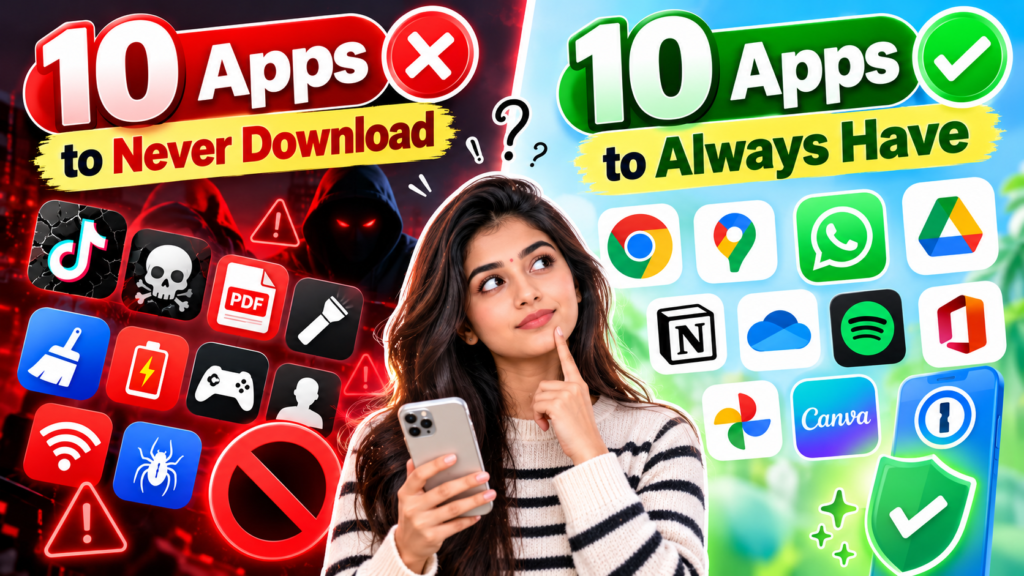
10 Apps to Never Download and 10 Apps to Always Have
By Advit
13 min read
Your smartphone helps you manage money, communicate with family, navigate unfamiliar places, edit photos, and handle everyday tasks. But the applications you install can also affect your privacy, security, storage space, and overall phone performance. Choosing the right apps is just as important as knowing which ones to avoid.
Some apps request unnecessary permissions, display misleading advertisements, or promise features that sound too good to be true. Others are useful everyday tools that can help you protect your accounts, organize your work, and find important information when you need it.
In this guide, we will explore 10 types of apps you should avoid downloading and 10 useful apps worth keeping on your phone. You will also learn how to recognize suspicious applications, review app permissions, and make smarter decisions before installing anything.
10 Apps You Should Never Download on Your Phone
Not every app in these categories is dangerous. The warning signs are excessive permissions, misleading claims, unknown developers, hidden costs, and suspicious installation methods. Use the following list as a practical safety guide rather than a blanket judgment about every app.
1. Fake Phone Cleaner and RAM Booster Apps
Some cleaner apps promise to make your phone dramatically faster, remove every virus, or extend battery life with a single tap. However, many provide little real benefit and may generate excessive advertisements or encourage unnecessary downloads.
Your phone’s operating system already manages memory and background processes. A third-party cleaner is not automatically harmful, but you should question apps that make unrealistic performance claims.
What to do instead: Use your phone’s built-in storage settings to remove unnecessary files, uninstall unused applications, and manage large downloads.
2. Unknown APKs Downloaded From Random Websites
Android allows applications to be installed outside the Google Play Store, but an APK downloaded from an unfamiliar website can expose your device to malware or fraudulent software.
Be particularly cautious when an application asks you to disable security protections or requests access to SMS messages, notifications, or Accessibility services without a clear reason. Google warns that these permissions can be abused by malicious apps to steal sensitive information and facilitate financial fraud. <Link url=”https://developers.google.com/android/play-protect/warning-dev-guidance” title=”Google Play Protect guidance”/>.
What to do instead: Prefer official app stores or the developer’s verified distribution channel. Keep Google Play Protect enabled and take installation warnings seriously.
3. Fake Banking, Loan, and Investment Apps
Fraudulent financial applications may imitate legitimate banking services, promise guaranteed returns, or advertise instant loans with unclear fees. Some may request sensitive personal information, contact access, or unnecessary permissions.
An app’s attractive design or large number of downloads does not prove that it is trustworthy. Financial scams can lead to identity theft, unauthorized transactions, and unwanted disclosure of personal data.
What to do instead: Install your bank’s official application from a verified source. Check the developer’s identity, review the terms and fees, and verify financial services through official channels.
4. Unofficial Social Media Followers and Likes Apps
Applications that promise thousands of followers, instant likes, profile visitors, or guaranteed engagement can put your social media account at risk. Some ask you to enter your Instagram or other social media password directly into an unfamiliar interface.
Such services may violate platform rules, collect credentials, or use questionable engagement practices.
What to do instead: Use the social media platform’s official analytics and account-management tools. Never share your password with a service that does not have a legitimate need to handle your account securely.
5. Suspicious Free VPN Applications
A VPN can help protect network traffic in certain situations, but it does not automatically make you anonymous or secure. An untrustworthy VPN provider may collect browsing data, display intrusive advertisements, or make unclear claims about privacy.
Free access alone does not make a VPN unsafe. The important questions are who operates it, how it earns money, what data it collects, and whether its privacy claims are credible.
What to do instead: Research the provider’s ownership, privacy policy, security practices, and independent reputation before installing a VPN.
6. Unknown Keyboard and Clipboard Apps
Keyboard applications can potentially process the text you type, depending on their design and permissions. An unfamiliar keyboard with an unclear privacy policy could create unnecessary risks when you enter passwords, personal messages, or financial information.
Clipboard managers also deserve attention because copied text may contain private details, including temporary verification codes.
What to do instead: Prefer a reputable keyboard from a known developer. Review its permissions and privacy practices, and avoid giving unnecessary access to sensitive information.
7. Apps That Promise to Reveal Who Viewed Your Profile
Some applications claim they can show every person who viewed your Instagram, Facebook, or other social media profile. These promises should be treated cautiously when the platform does not provide that information through an official feature.
Such apps may encourage you to sign in, complete surveys, watch advertisements, or pay for features that cannot reliably deliver what they promise.
What to do instead: Use official profile analytics where available, especially for professional or creator accounts.
8. Fake Antivirus and Security Scanner Apps
Security applications can be useful, but some fake scanners use alarming pop-ups to claim that your phone is infected. They may pressure you into paying for a subscription or installing additional software.
A dramatic warning inside a webpage or advertisement is not proof that your device has a virus.
What to do instead: Use built-in security features such as Google Play Protect on supported Android devices. On iPhone, keep iOS updated and review application permissions and privacy settings.
9. Pirated Streaming and Cracked Premium Apps
Modified applications that promise free access to paid services may contain unwanted code, collect personal information, or require risky permissions. They can also stop working unexpectedly or expose you to fraudulent advertisements.
Downloading a modified app from a random website removes important reasons to trust the original developer’s distribution process.
What to do instead: Use official applications, free legal alternatives, and legitimate subscription plans. Avoid disabling device security protections just to install a modified app.
10. Unknown Apps With Excessive Permissions
An application may need access to specific phone features to work properly, but requests should make sense for its purpose. For example, a simple calculator generally does not need continuous location access or access to your contacts.
On Android, Google Play Protect can warn about potentially harmful applications. On iPhone, you can manage access to location, photos, camera, microphone, contacts, and other data through Privacy & Security settings. <Link url=”https://support.apple.com/en-in/guide/iphone/iph6e7d349d1/ios” title=”Apple’s privacy controls guide”/>.
What to do instead: Check permissions before and after installation. Remove access that is unnecessary for the app’s core function.
10 Useful Apps You Should Always Have Handy
The following apps cover security, communication, navigation, productivity, and everyday organization. Some are free, while others offer optional paid features. Availability and functionality may vary by country and device.
1. Google Maps
Google Maps is useful for finding addresses, planning journeys, checking traffic conditions, and discovering nearby businesses. It can also help you save places and download supported areas for offline navigation.
It is particularly helpful when traveling in unfamiliar cities or looking for essential services.
Best for: Navigation, travel planning, local searches, and directions.
Official website: https://maps.google.com/
2. Google Password Manager or Apple Passwords
A password manager helps you store and organize login credentials rather than reusing the same password across multiple websites. Google Password Manager integrates with supported Google services and Android devices, while Apple Passwords is available on supported Apple devices.
These tools can also support password autofill and, where available, verification codes and security alerts.
Best for: Managing strong, unique passwords and reducing password reuse.
Official resources:
Google: https://passwords.google.com/
Apple: https://support.apple.com/guide/iphone/passwords-iphf9219d8c9/ios
3. Google Authenticator or Another Trusted Authenticator
An authenticator application generates verification codes that provide an additional layer of protection for supported accounts. This can help protect accounts even if someone learns your password.
Before choosing an authenticator, check how it handles backups, account recovery, and device changes.
Best for: Two-factor authentication and account security.
Official website: https://support.google.com/accounts/
4. Google Drive or iCloud Drive
A cloud storage application helps you save documents, photos, and other files so you can access them across supported devices. It can also make sharing documents easier and provide a convenient way to organize important work.
Cloud storage is not a replacement for every type of backup, so check your backup settings and available storage.
Best for: File storage, document sharing, and accessing files across devices.
Official websites:
Google Drive: https://drive.google.com/
iCloud: https://www.icloud.com/
5. Google Keep or Apple Notes
A notes application makes it easier to save quick reminders, shopping lists, ideas, meeting notes, and small pieces of information you need later.
Google Keep works well for quick notes and lists, while Apple Notes integrates with the Apple ecosystem.
Best for: Everyday notes, reminders, checklists, and organizing ideas.
Official websites:
Google Keep: https://keep.google.com/
Apple Notes: https://www.apple.com/ios/notes/
6. Google Calendar or Apple Calendar
A calendar application helps you manage appointments, birthdays, deadlines, meetings, and personal commitments. Notifications can remind you about upcoming events so you are less likely to forget important tasks.
You can also use calendars to plan your weekly schedule and keep work and personal commitments organized.
Best for: Scheduling, reminders, appointments, and time management.
Official websites:
Google Calendar: https://calendar.google.com/
Apple Calendar: https://www.apple.com/ios/calendar/
7. Google Lens
Google Lens can help identify objects, recognize text in images, translate supported text, and find information about things you photograph. Its availability depends on your device and the Google applications installed.
It can be useful when reading signs, extracting text from a printed document, or identifying an unfamiliar object.
Best for: Visual search, text recognition, and translation assistance.
Official website: https://lens.google/
8. WhatsApp
WhatsApp is widely used for messaging, voice calls, video calls, and sharing photos and documents. It can also support communication with family, friends, colleagues, and groups.
Protect your account with two-step verification, keep the application updated, and be careful with unexpected links or requests for verification codes.
Best for: Everyday communication and sharing files.
Official website: https://www.whatsapp.com/
9. Google Files
Google Files helps you browse files, organize downloads, manage storage, and identify content you may no longer need. On supported Android devices, it can make it easier to find large files and free up storage space.
Review suggested deletions before confirming them so that you do not accidentally remove important documents or photographs.
Best for: File management, storage cleanup, and organizing downloads.
Official website: https://files.google.com/
10. Find Hub or Apple Find My
A device-finding application can help you locate supported devices and take certain protective actions if a phone is misplaced. Available features depend on your device, account configuration, and connectivity.
Set up the feature before you lose your phone. Review the available location and recovery settings, and keep your account recovery information up to date.
Best for: Finding supported devices and preparing for loss or theft.
Official resources:
Google Find Hub: https://www.google.com/android/find/
Apple Find My: https://www.apple.com/icloud/find-my/
How to Check Whether an App Is Safe Before Downloading
Before installing a new application, take a minute to examine it. These simple checks can help you avoid many common problems.
Step 1: Verify the Developer
Check the developer’s name and official website. Be cautious when an application imitates a well-known brand but uses an unfamiliar developer identity.
Step 2: Read Recent Reviews
Look for detailed reviews that describe real experiences. Repeated complaints about unexpected subscriptions, suspicious advertisements, or account problems deserve attention.
Reviews are not perfect proof of safety, but they can help you identify warning signs.
Step 3: Review Permissions
Ask whether each requested permission is necessary. A map application may need location access while navigation is active, but a basic wallpaper application generally does not need access to your contacts.
Step 4: Check the Privacy Policy
Look for clear explanations of data collection, sharing, storage, and deletion. If the developer provides little meaningful information about how sensitive data is handled, consider another option.
Step 5: Use Built-In Security Features
On Android, open Google Play Store, tap your profile icon, and select Play Protect to review available scanning options. Keep protection enabled unless you have a specific, well-understood reason to change it. <Link url=”https://support.google.com/googleplay/answer/2812853” title=”Official Google Play Protect instructions”/>.
On iPhone, review Settings, then Privacy & Security, to manage application access to personal data. <Cite refs={[“turn824055search0″,”turn824055search6”]}/>
Frequently Asked Questions
1. Are all free applications unsafe?
No. Many free applications are reputable and useful. The important factors are the developer’s credibility, privacy practices, permissions, security, and business model.
2. Should I download apps only from official stores?
Official stores are generally a safer starting point because they provide developer information and security review processes. However, no store can guarantee that every application is completely safe. Continue checking permissions and warning signs.
3. Do cleaner apps really make phones faster?
Some storage tools can help you identify unnecessary files, but aggressive cleaning is rarely a universal solution for a slow phone. Check available storage, update your operating system, and remove applications you no longer use.
4. How many apps should I keep on my phone?
There is no ideal number. Keep the applications you actually use, remove unnecessary ones, and periodically review storage usage and permissions.
5. What should I do if I installed a suspicious app?
Uninstall it if you suspect it is harmful, run the available security checks, and review its permissions. If you entered a password or financial information, change the affected credentials from a trusted device and contact your bank or service provider if necessary.
6. Are built-in phone security features enough?
Built-in protections are an important starting point, but they cannot eliminate every risk. Keep your device updated, use strong authentication, download applications carefully, and avoid sharing sensitive information with untrusted services.
Final Thoughts
Your smartphone can be safer and more useful when you choose applications carefully. Avoid suspicious cleaners, unofficial financial apps, fake profile-viewer tools, pirated software, and applications that request unnecessary permissions. At the same time, keep useful tools for navigation, password management, authentication, file storage, communication, and device recovery.
You do not need dozens of applications to get the most out of your phone. Focus on reliable tools that solve real problems, review their permissions regularly, and remove anything you no longer need.